CascadePlan User Guide
Plan Jira work the way it really overlaps. CascadePlan is a timeline inside Jira Cloud. Work can start when its predecessor is 30% done, not only when it is finished. When a date slips, the work that depends on it moves with it, and you see every Jira change before it happens. Baselines show what the team committed to, and what changed since. Everything it shows is Jira data, so the plan and Jira never disagree.
1. Why CascadePlan
Planning in Jira usually breaks in four places. CascadePlan is built around each of them.
Real work overlaps, but most plans do not
In most planning tools a dependency means "finish to start": the API integration waits until the database design is 100% done. Real teams do not work that way. The integration starts when the schema is about 30% done, and the test plan starts when the first screens exist. A plan that cannot say this is either padded with weeks of waiting, or ignored.
In CascadePlan every link has a trigger percent: "B starts when A reaches 30%". The plan shows the overlap the team really works with, and "Why this date?" explains, in one sentence, what holds each item back.
When one date slips, the rest of the plan is wrong
A two-week slip on one task quietly breaks every date after it. Someone has to find the dependent work and move it by hand, and usually nobody does.
In CascadePlan moving a work item moves the work that depends on it (the cascade). Moving a story moves its sub-tasks with it, and work already in progress or done is treated as such: it is not moved as if nothing had started.
Tools that change Jira behind your back lose trust
Planning tools often write dates, estimates or links into Jira that nobody chose, or keep their own copy of links and parents, so the plan and Jira drift apart.
In CascadePlan Jira is the record. Links are Jira "Blocks" links, parents are Jira parents, and extra people on a task are Jira sub-tasks. Before you drop a bar, a line lists every Jira change the drop will make. CascadePlan writes only what you chose, as you, with your Jira permissions; every write can be undone and is listed with its old and new value.
Scope grows quietly
Work gets added and estimates rise after the team committed, and at the review nobody can show what the commitment was.
In CascadePlan a plan approver freezes the plan as a baseline. From then on the toolbar shows the change since the freeze: hours added, items added or removed, items ending later. A change of scope is requested with a reason and accepted by a plan approver other than the requester.
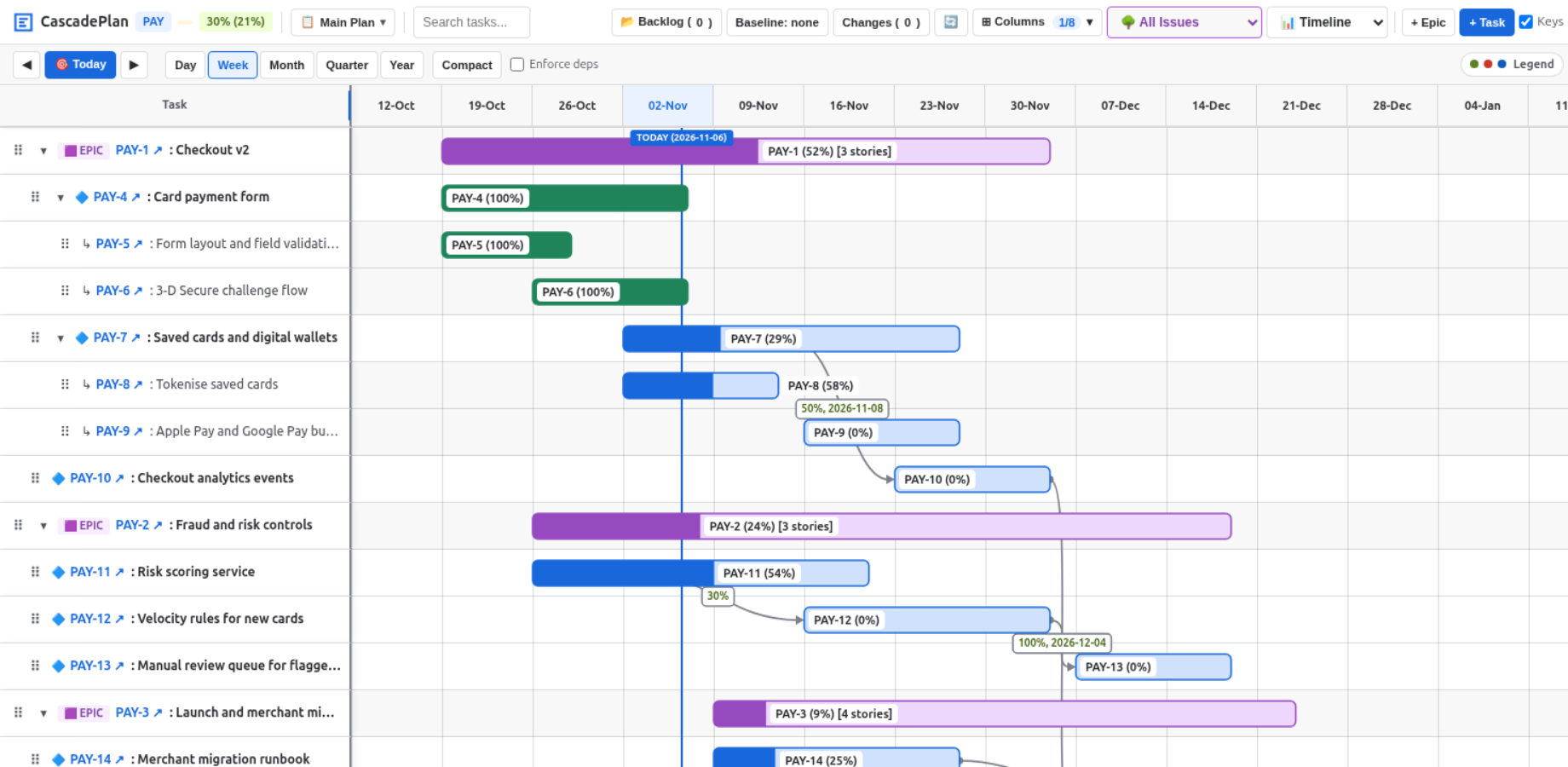
Figure 1: A plan in CascadePlan. Epics with their stories, tasks and sub-tasks, progress on every bar, and links that start at 30% or 50% of their predecessor.
Who it is for
- Delivery leads and project managers who plan in Jira and need dates that follow the work, not a separate spreadsheet.
- Teams with overlapping work: design, build and test that run partly in parallel.
- Teams that commit to scope (a sprint, a release, a contract milestone) and must show what changed and who accepted it.
- Jira administrators who want a planning tool that keeps Jira as the record and respects Jira permissions.
2. Quick start
- Open a Jira project and choose CascadePlan Planner in the project's navigation.
- Work items with dates are on the timeline. Work items without dates are in the Backlog tray: open it and drag one onto the timeline to give it dates.
- Hover a bar: arrows appear at both ends. Drag the right arrow onto another bar to make a link, and choose when the second item may start (for example 30%).
- Drag the first bar a week later. Before you let go, read the line that lists the Jira changes. Let go: the linked item moved too.
- A message with Undo appears. Press Ctrl+Z (Cmd+Z on macOS) to undo, or open Changes to see every Jira write.
Choose How CascadePlan works in the planner at any time for a short help panel.
3. The planner at a glance
The planner has a grid of work items on the left and the timeline on the right. The toolbar holds:
| Control | What it does |
|---|---|
| Plan selector (for example "Main Plan") | Switches plans, and opens plan management and the plan's JQL filter (section 11). |
| Search tasks (Ctrl+F) | Finds work items by key or summary. |
| Backlog | The tray of work items without dates. |
| Baseline | Shows the change since the active baseline, and opens the baseline panel (section 12). |
| Changes | Every Jira write of your session, with old value, new value and result (section 9). |
| Refresh (🔄) | Reads the plan from Jira again. |
| Columns | Shows or hides grid columns: Epic, Story, Resource, Hrs, Progress, Target, Status. Task is always shown. |
| All Issues | Shows all work items, epics only, or stories and tasks. |
| Timeline, Table, Utilization | The three views (section 10). |
| + Epic, + Task | Create an epic, or a task with its schedule, in Jira. |
| Keys | Turns the single-letter shortcuts on or off. |
| Today, ◀ ▶, Day to Year | Jump to today, scroll, and zoom the timeline. |
| Compact | Shows only Key and Summary, so the timeline gets most of the width. |
| Enforce deps | When on, a bar cannot be dropped before its links allow (section 6). |
| Legend | Green is done or on track, red is behind or in conflict, blue is planned. |
Each bar shows the work item's key and progress. A row's ⋯ menu, its ✏️ button and a double-click on a bar open the full task dialog.
4. How CascadePlan thinks
- Jira is the record. Every relationship you see exists in Jira: dependencies are Jira "Blocks" links, parents are Jira parents, and extra people on a task are Jira sub-tasks.
- Dates. A bar's end is the work item's Jira Due date. Its start is stored on the work item as the issue property
cascadeplan.dates, because not every Jira project has a start date field. Both are shared: every plan and every user sees the same dates. - Links with a trigger percent. A link says "B starts when A reaches N%". The percent is stored on B as the issue property
cascadeplan.links. A work item can have several predecessors; its earliest start is set by the one that allows the latest start. - Progress and status. Whether a work item has started or is finished comes only from its Jira status: To Do, In Progress or Done. Progress says how far an item in progress has got. A Done item always shows 100%. Otherwise progress is the time logged in Jira against the estimate, or a value you set by hand for a plan.
- Target. Target is how far the work should be by today, from its start and end dates. A bar is red when it starts too early for its links or falls behind.
- The cascade. When a move makes a successor start too early, CascadePlan moves the successor, and its successors, and lists every one of them before the drop.
- Parents follow their children. A task or story with sub-tasks spans its sub-tasks, and its Jira due date follows their end. An epic spans its work.
- Your permissions. Every change is a Jira write made as you, checked against your Jira permissions first. If you may not make a change, CascadePlan refuses it and names the missing permission (section 14).
5. Scheduling work
Put work on the timeline
- From the backlog: open Backlog and drag a card onto the timeline, or choose + Schedule on the card.
- A new task: choose + Task and fill in Summary, Parent Epic, Assignee, Effort Hours and Start Week; CascadePlan creates the Jira task and schedules it. To insert a task under a row, use the row's ➕.
- A new epic: choose + Epic.
- Off the timeline: in the task dialog, Move to Backlog takes a work item off the timeline in every plan. Its Jira due date is left as it is.
Move and resize bars
- Drag a bar to move it; drag an edge to change its start or end. Bars snap to days or weeks, depending on the zoom. Hold Alt while dragging to snap to days.
- While you drag, a line just above the row you move lists every Jira change the drop will make: each due date in Jira and each start date (shared by every plan), for the bar you move, the work that depends on it, the sub-tasks of any parent the move reaches, and each parent whose Jira due date follows its sub-tasks. The planner and the server work out these changes with the same code.
- Click a bar for its toolbar: Move 1 week earlier, Move 1 week later, Edit dates, Add dependency and Set progress.
- Edit dates opens a small editor with start and end, and buttons to move both by a week.
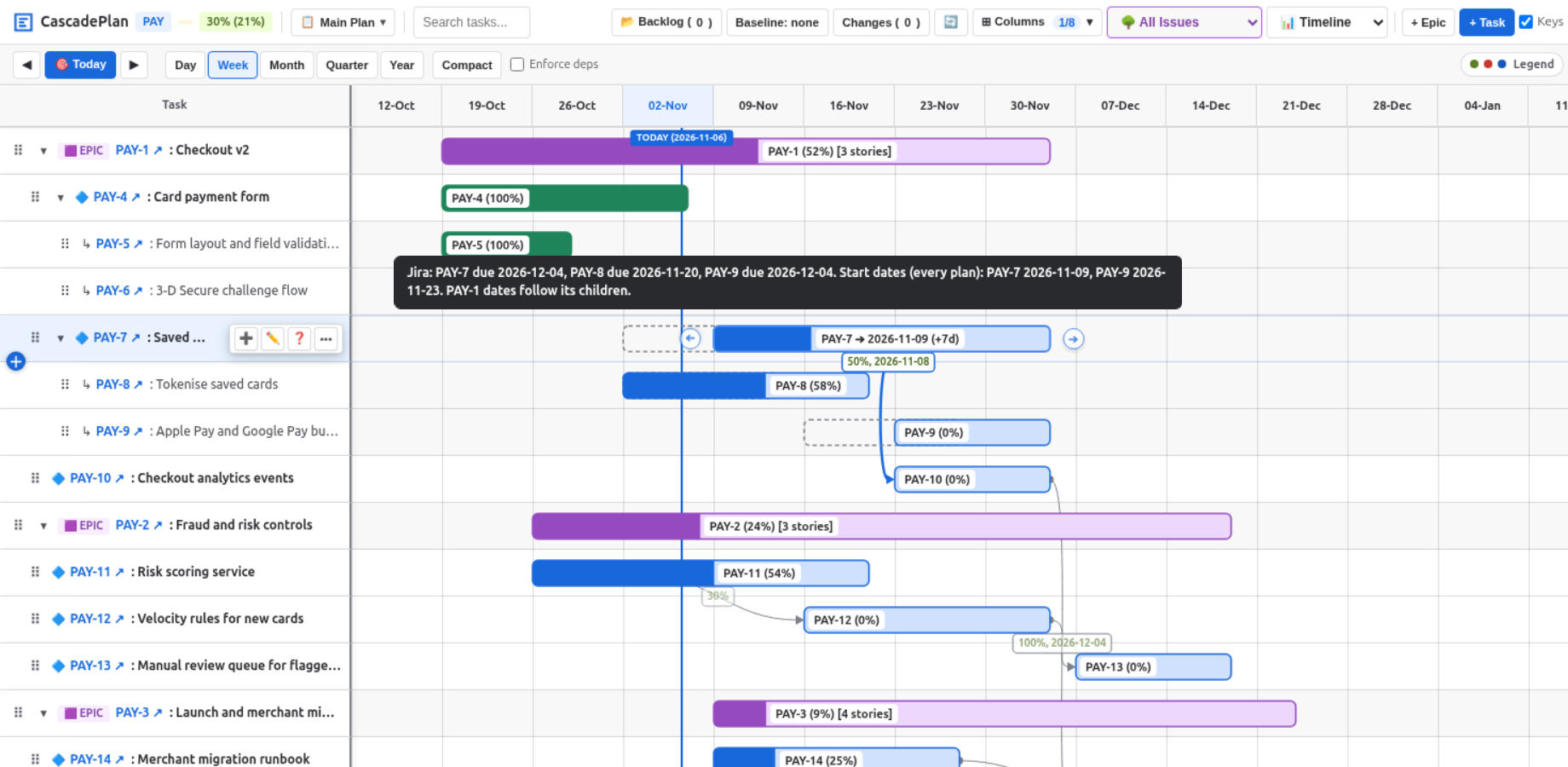
Figure 2: Dragging a story one week later. Before the drop, CascadePlan lists every due date and start date that will change, including its sub-tasks and the parent epic.
6. Dependencies
Add a link
- Hover a bar and drag the arrow at its right end onto the bar that waits for it, or the arrow at its left end onto the bar it waits for.
- Or select the bar, choose Add dependency, pick the work item it waits for, and set Starts when that issue reaches (percent).
- Choose 0%, 30%, 50%, 100% or any percent. 100% is the classic finish-to-start link.
Read and change a link
- Every link has an arrow and a label with its percent, and the date it is met when known. Click the arrow or the label to open the link editor: change the percent, Swap direction, or Remove Link, which deletes exactly that Jira link.
- While a bar is selected, the labels of other links are dimmed, so the selected bar's links stand out.
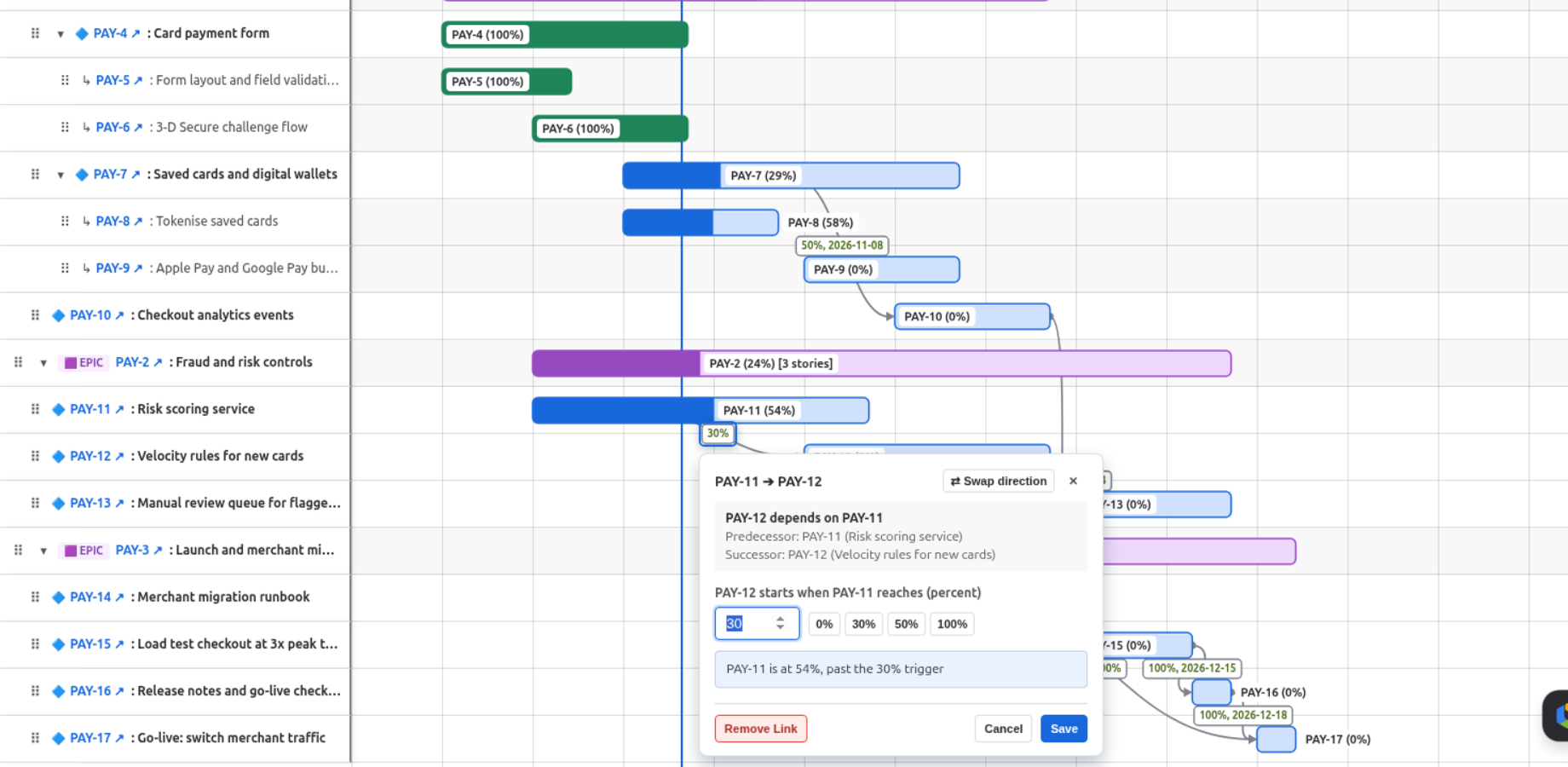
Figure 3: The link editor. PAY-12 starts when PAY-11 reaches 30%; PAY-11 is at 54%, so the trigger is met.
Why this date?
Choose ❓ on a row, or select a row and press ?. CascadePlan names the link that sets the work item's earliest start, the trigger percent and the date it is met, or says that nothing holds the work back.
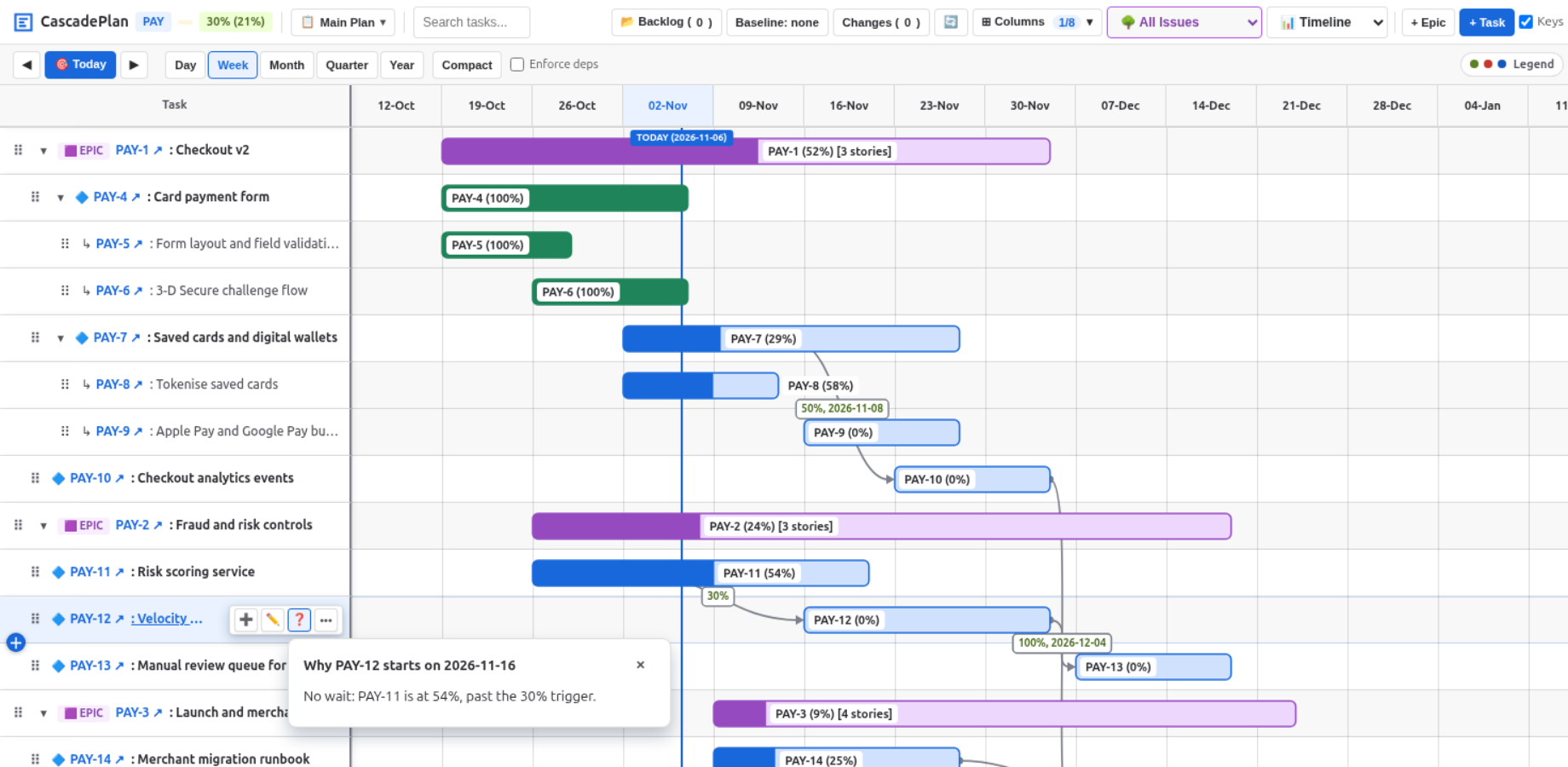
Figure 4: Why this date? in one sentence.
Conflicts
If you drop a bar before its links allow, and Enforce deps is off, a dialog names the predecessor and offers: Snap to Earliest Start, Adjust Trigger to Fit (lower the percent so the new date is allowed), Keep with Violation (the bar turns red and its label says "starts too early"), or Cancel Move. With Enforce deps on, the bar snaps to the earliest allowed day.
Rules
- A parent's links also hold back its sub-tasks. With Enforce deps on, CascadePlan checks this again before it writes, so a sub-task never starts before its parent's predecessor allows. When a move pushes a parent later, its sub-tasks move as a block.
- A link between a work item and its own parent or sub-task is refused, because the parent's dates come from its sub-tasks. A link that would make a loop is refused too.
7. Moving blocks and changing the hierarchy
Move a task or story with its sub-tasks
Drag the bar of a task or story that has sub-tasks, or move it with the keyboard or the bar toolbar: the whole block moves.
- Sub-tasks not started move by the same number of days.
- A sub-task in progress keeps its start and moves its end, never to before today.
- A finished sub-task stays where it is.
- The parent's Jira due date follows its new end, and the work that depends on the block moves too.
- One Undo restores the whole block. A block with more than 25 changing sub-tasks is saved in steps, with progress shown.
Move work under another parent, or change its type
- Drag a row by its handle (⠿) onto the middle of another row: the target is outlined and a label says what will happen. Dropping on the top or bottom edge of a row reorders instead.
- Or open the task dialog and use Parent in Jira.
- CascadePlan asks first, then makes the change in Jira: a task under another epic, a sub-task under another task, or a task turned into a sub-task and back. A type change is a Jira bulk move job; the planner shows its progress.
- Jira's rules apply: a task with sub-tasks cannot become a sub-task, and a sub-task cannot have children. Undo makes the reverse change.
Reorder rows
Drag a row's handle onto the top or bottom edge of another row. Row order belongs to the plan: each plan can order the same work differently.
8. Work items: sub-tasks, people, estimates, progress and status
- Sub-tasks: in the task dialog, Create sub-task in Jira creates a Jira sub-task, with an estimate only if you type one.
- More than one person: a Jira issue has one assignee. Under Multi-Resource Allocation (Jira Subtasks), choose a person and hours and choose + Allocate Resource: CascadePlan creates a Jira sub-task assigned to that person, so the work shows in their own queue. Removing them asks whether to Delete sub-task or Unassign sub-task.
- People: click the Resource cell to pick people; it shows the task's assignee and the people on its sub-tasks.
- Estimates: each task can use Hours, Story Points (1 point = 8 hours) or a T-Shirt Size (XS 4 h, S 8 h, M 16 h, L 32 h, XL 64 h). CascadePlan converts it to hours for scheduling. Also scale the Jira estimate when I resize this bar is off unless you turn it on.
- Progress: right-click a bar, click the Progress cell, or use the task dialog. Use Rollup sets a parent's progress from its children. The progress of a Done item is 100% and cannot be changed; to change it, first choose another status.
- Target: click the Target cell. ⚡ Auto sets it from the dates and today.
- Status: click the Status cell and pick To Do, In Progress or Completed; CascadePlan runs the matching Jira transition.
- Epic: click the Epic cell of a story or task to link it to an epic.
CascadePlan never writes a default: no default estimate, no default due date, and a progress change never changes the Jira status by itself.
When progress and the Jira status disagree
When you set a progress that does not match the work item's Jira status, CascadePlan asks in the same step, before it saves:
| You set | Jira status now | CascadePlan asks |
|---|---|---|
| 1% to 99% | To Do | "PAY-12 is To Do in Jira. Also move it to In Progress?" |
| 100% | To Do or In Progress | "Also move it to Done?" |
| 0% | any | Nothing: the status stays as it is. |
- Move saves the progress and runs the Jira workflow transition. Your workflow decides whether the move is allowed; if Jira refuses it, the progress is still saved and the Changes panel says why.
- Keep saves only the progress. An item at 100% that is not Done then reads "100%, not Done in Jira".
- Escape saves nothing.
- Stand-up mode and the selection bar ask once for all the rows they change, and list them.
- One Undo reverses the progress and the status together.
9. See and undo every change
- Before: while you drag, the planner lists every Jira change the drop will make.
- After: each write shows a message in Jira with Undo, which stays until you close it. A failed write stays until you close it, and says why.
- Undo and Redo: Ctrl+Z and Ctrl+Shift+Z (Cmd on macOS) cover your last 20 changes, links included. Undo puts back the exact earlier dates.
- Changes: the panel "Jira writes in this session" lists every write with the work item, the field, the old value, the new value and whether Jira accepted it.
- Safe to repeat: if a create gets no answer (for example a timeout), CascadePlan says the result is unknown. Making the same request again returns the item it already created, never a second one.
- Someone else changed it: if another user changed a work item while you edited it, CascadePlan refuses your change instead of overwriting theirs, and asks you to reload.
10. Views and working with many items
- Timeline: zoom by Day, Week, Month, Quarter or Year (or Ctrl and plus or minus). Today jumps to the current date.
- Table: every work item and its dates in a plain table, for reading and for screen readers.
- Utilization: estimated hours per person per week for the next 8 weeks, from the estimates and dates on the plan, spread evenly over each task's days. No capacity is assumed, so nobody is marked over-allocated.
- Columns and Compact: column choices and widths are saved for the plan, so everyone who opens the plan sees them.
- Select several: Ctrl-click (Cmd-click) rows to add them, Shift-click to select a range. The selection bar then sets Progress %, moves them by a number of Days, or sets an Assignee for all of them, with one Undo.
- Stand-up mode: in the grid, type a digit on a row to set its progress (3 is 30%), go on to the next row, and press Enter to save them all, or Escape to drop them.
11. Plans and plan filters
Each project has a Main Plan and can have scenario plans, for example "Plan B: launch without wallets".
- Open the plan selector to switch plans and search them. Plan approvers create a plan (empty or as a copy of the open plan), copy, rename and delete plans. The Main Plan cannot be deleted.
- What a plan owns: its row order, columns, hand-set progress and targets, and baselines.
- What every plan shares: dates, links, the hierarchy and every Jira field, because they are Jira data. A move in a scenario plan is a real Jira change.
- Plan filter: a plan reads at most the newest 1,000 work items of the project. For larger projects, a plan approver can narrow the open plan with a JQL filter, for example
fixVersion = "2.0"orcomponent = "Payments", and choose Save filter. Jira checks the filter first, and CascadePlan says how many work items match. Work outside the filter is not shown, and a move does not move it. Clear the field and save to read the whole project again.
12. Baselines and scope reviews
- A plan approver chooses Baseline in the toolbar, enters a name such as "Sprint 23 commitment", and chooses Freeze the plan as a baseline. The baseline records each work item's Jira estimate, start and end, with a SHA-256 digest.
- The Baseline button then shows the change since the freeze, for example
+24 h (+8.1%), 1 added, and is marked when the scope grew. - The panel lists every work item added, removed or changed (estimate, start, end), with the totals before and after.
- Anyone in the project can write a reason and choose Request approval of this scope.
- A plan approver other than the requester chooses Accept or Reject. Accepting freezes a new baseline version, which becomes the active one.
- Under Baseline versions: Compare with now, Compare with active, Export CSV (with the digest) and, for plan approvers, Make active.
Each read of a baseline checks its digest; if a stored baseline no longer matches what was frozen, the panel says so.
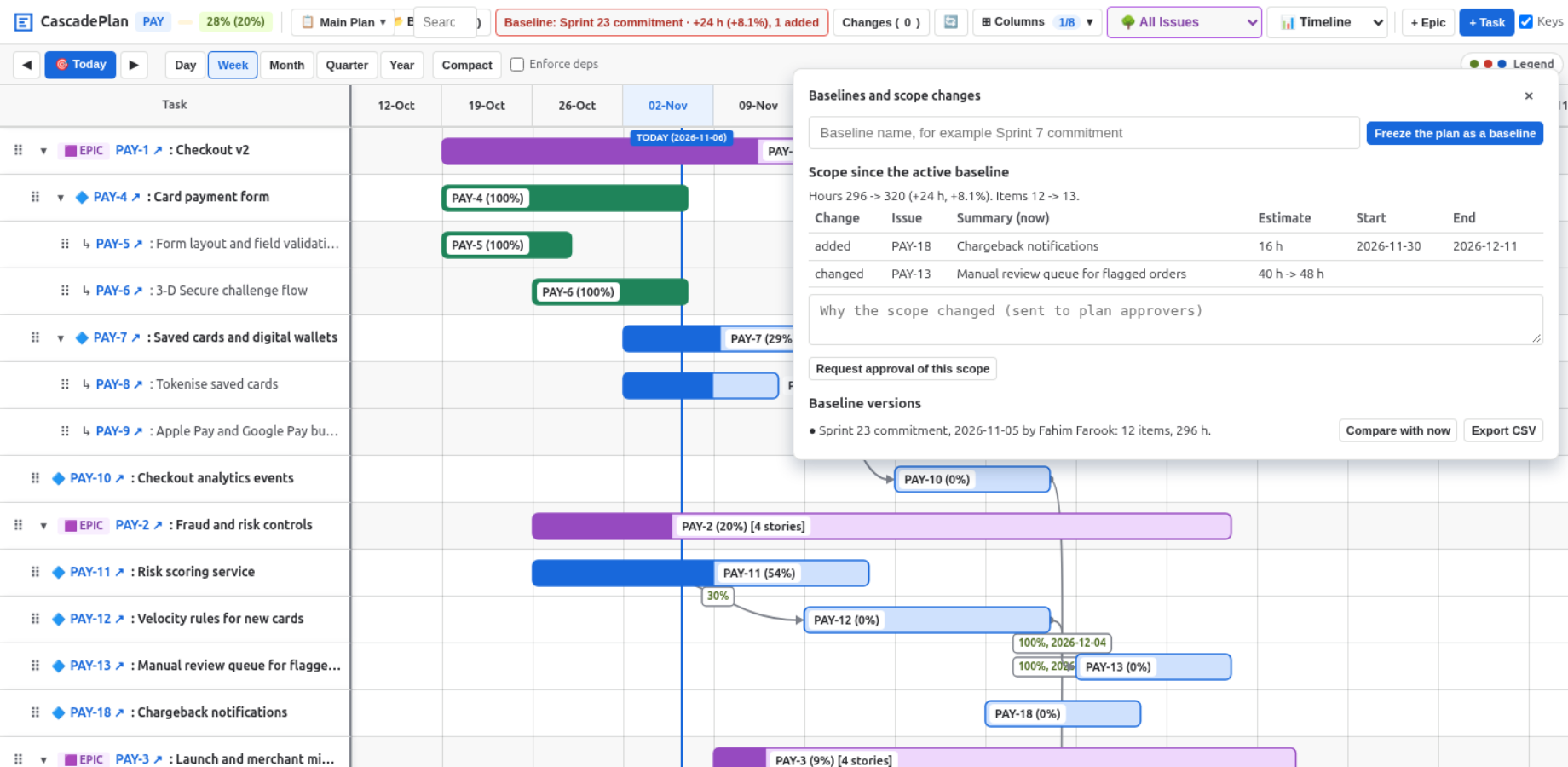
Figure 5: The Baseline panel shows the change since "Sprint 23 commitment": one task added and one estimate raised, 24 hours in all.
13. Keyboard reference
Yes, CascadePlan can be used without a mouse. The grid of work items is one tab stop: press Tab until a cell is focused, then use the keys below. Every shortcut works only while focus is in the planner and not in a text field, so it never takes keys from Jira or from what you type. The single-letter shortcuts d, e and t also need Keys on in the toolbar; turn it off if they get in the way of a screen reader or another tool. On macOS, use Cmd where the table says Ctrl.
Moving around the grid
| Keys | Action |
|---|---|
| Arrow keys | Move one row up or down, or one cell left or right. |
| Home, End | Go to the first or last cell of the row. |
| Ctrl+Home, Ctrl+End | Go to the first or last row. |
| Page Up, Page Down | Move one screen of rows up or down. |
| Enter | Open the task dialog of the focused row. |
| Space on any cell except Start and Due | Select or clear the row. The selection bar then acts on every selected row. |
Moving and resizing a bar
| Keys | Action |
|---|---|
| Space on the Start or Due cell | Start move mode for the bar of that row. The preview shows the new dates and the successors that would move. |
| Left, Right (in move mode) | Move the whole bar one day earlier or later. |
| Shift+Left, Shift+Right (in move mode) | Move the whole bar one week. |
[ and ] (in move mode) | Make the bar one day shorter or longer (the end moves, the start stays). |
| Enter (in move mode) | Save the move. Successors move as their links say, and Jira is updated. |
| Escape (in move mode) | Cancel: the bar keeps its dates. |
Move mode is for a work item with dates. A story or task with sub-tasks moves as a block. An item whose dates come only from its children says so and asks you to move a child instead; an epic is not moved from the keyboard.
Progress
| Keys | Action |
|---|---|
| 0 to 9 | Set the progress of the focused row to 0% to 90%. Move to other rows and repeat: the changes wait. On a Done row the digits do nothing, and CascadePlan says why. |
| Enter | Save every waiting progress change in one step (one Undo reverses them all). If a progress does not match a row's Jira status, CascadePlan first asks once for all of them. |
| Escape | Drop the waiting progress changes. |
Shortcuts
| Keys | Action |
|---|---|
? | Why this date? for the focused row, or for the bar you point at. Works also when Keys is off. |
d | Add a dependency to the focused row, or to the bar you point at. |
e | Open the task dialog of the focused row, or of the bar you point at. |
t | Scroll the timeline to today. |
| Ctrl+Z | Undo the last change. |
| Ctrl+Shift+Z | Redo. |
| Ctrl+F | Search work items in the plan. |
| Ctrl and plus, Ctrl and minus | Zoom the timeline in and out. |
Undo and redo with Ctrl+Z work in the planner only; in a text field, Ctrl+Z still undoes your typing.
In the search box
| Keys | Action |
|---|---|
| Enter, or Down | Go to the next match. |
| Shift+Enter, or Up | Go to the previous match. |
| Escape | Clear the search. |
Closing things
Escape closes one thing at a time, in this order: the Why this date? popup, the bar toolbar, the help popup, the Changes panel, the baseline panel, then an open dialog (a dialog with unsaved changes asks first), then any open menu.
14. Administration and permissions
Plan approvers
Jira administrators open Jira admin settings, Apps, CascadePlan approvers, search for Jira groups, add them and choose Save changes. Members of these groups, project administrators and Jira administrators are plan approvers: they create, copy, rename and delete plans, set plan filters, freeze baselines, make a version active, and accept or reject scope changes. CascadePlan checks this on the server for every such action.
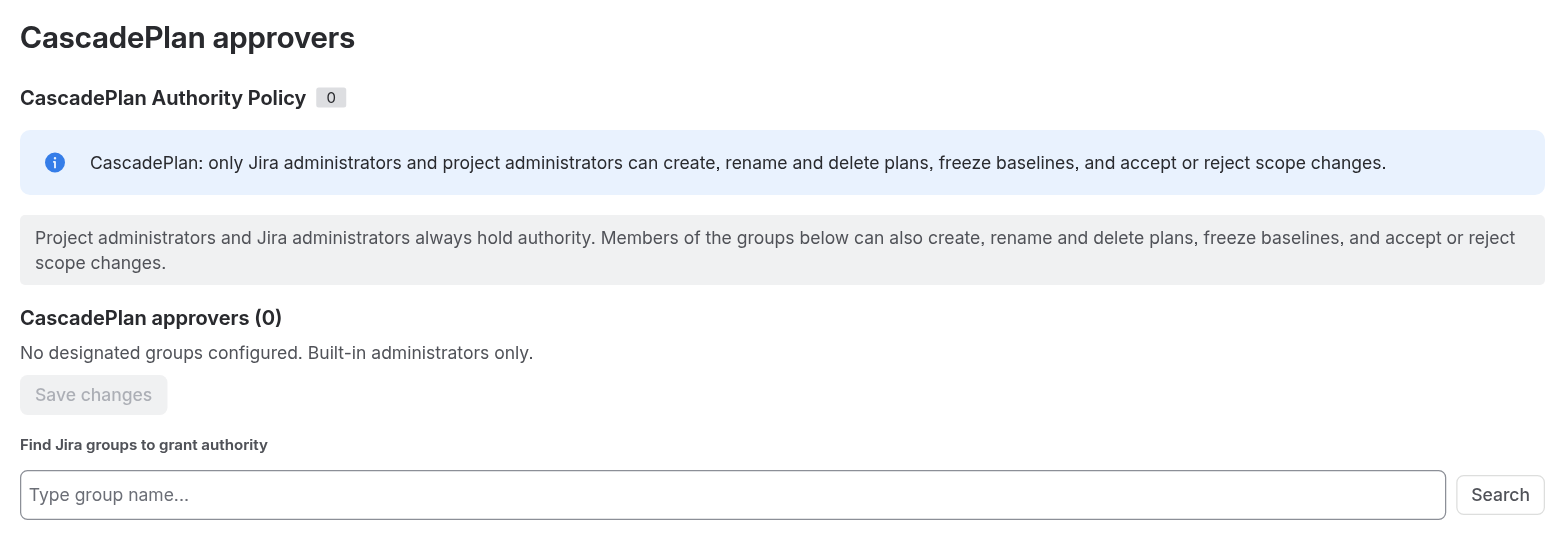
Figure 6: The CascadePlan approvers page in Jira admin settings.
Jira permissions each action needs
| Action | Jira permission of the user |
|---|---|
| Open the planner | Browse projects |
| Change dates, move or resize bars | Edit issues and Schedule issues on every work item that changes |
| Add, change or remove a link | Link issues |
| Change a parent | Edit issues |
| Turn a task into a sub-task, or back | Move issues and Create issues, and the global permission "Make bulk changes" |
| Create a task, epic or sub-task | Create issues (and Edit issues on the parent of a sub-task) |
| Reorder rows | Edit issues on the moved work item |
| Manage plans, filters and baselines; accept or reject scope | Plan approver |
| Request a scope review | Any user of the project |
When a permission is missing, CascadePlan refuses the change before writing anything, and names the permission and the work items.
15. Data, privacy and security
- Runs on Atlassian Forge. No external servers; no data leaves your Atlassian site.
- Stored in Forge storage of your site: plans, row order, columns, plan filters, hand-set progress and targets, baselines, scope-change requests and the approver groups.
- Stored on your Jira issues: the start date (
cascadeplan.dates), the trigger percents (cascadeplan.links) and, for issues CascadePlan created, a create id (cascadeplan.create). - Jira writes are made as you, only for values you chose: due dates, estimates, assignees, summaries, status transitions, links, issue properties, new issues and sub-tasks, sub-task delete or unassign, parent changes and type conversions.
- Personal data: Atlassian account ids of who froze a baseline, of who requested or reviewed a scope change, of each person who works on a task through a Jira sub-task, and of the Jira administrator who last saved the approver groups. Each id is reported to Atlassian's personal data reporting service once every 7 days, and removed from every record when the account is closed. See the privacy policy.
- No inline scripts or styles are allowed in the planner's frame.
16. Limits
- A plan reads at most 1,000 work items, the newest first; a plan filter narrows the plan for larger projects.
- Undo and Redo cover the last 20 changes of your session.
- A block move saves at most 25 sub-tasks per step, and blocks of more than 500 changing sub-tasks are refused.
- A cascade is saved in steps of 25 successors; the planner continues until it is done.
- A plan filter is one line of at most 1,000 characters, and cannot change the project or the order.
17. Troubleshooting
- "Showing the newest 1,000 of about N issues"
- The project is larger than one plan reads. Ask a plan approver to set a plan filter (section 11).
- A change was refused and names a permission
- Your Jira role lacks that permission on the named work items (section 14). Nothing was written.
- Someone else changed the work item
- Another user changed it while you edited it. Reload, check their change, and make yours again.
- "The result is unknown"
- The call ended without an answer. Check the plan, or make the same request again: CascadePlan will not create the item twice.
- A bar is red
- It starts before its links allow, or it is behind. "Why this date?" says which link holds it back.
- Dates changed in my scenario plan
- Dates are Jira data and shared by every plan. Use row order, columns and baselines to compare plans.
- "Licence required"
- The site's CascadePlan licence is not active. A Jira administrator can check it under Manage apps.
Still stuck? See support.
 Eliya
 Jira Governance
 Dial