DefinitionGuard User & Administrator Guide
How to define a Definition of Done (DoD) per issue type, record evidence on items, stop the assignee from completing review items, waive items with a recorded reason, block moves into Done, and export the checklist history.
1. The Ungated Done Problem
Agile teams rely on Definition of Done checklists to ensure code quality, unit test coverage, security reviews, and documentation standards. However, in native Jira or generic checklist plugins, checklists operate on the honor system: assignees tick their own boxes without attaching proof, skip peer reviews when under release pressure, and drag tickets into Done without technical verification.
DefinitionGuard makes the Definition of Done a gate. Checklists are defined per issue type. Items can require evidence (a link, a note, or both), items can be closed to the assignee, and the DefinitionGuard workflow validator blocks the move into a Done status while any mandatory item is still open and not waived.
2. Operating the DoD Checklist on an Issue
When working on a Jira issue:
- Open the Definition of Done issue panel. The header shows DoD complete or Incomplete, and the summary names the open mandatory items and the next step.
- The Definition of Done items section lists the items of the template for this issue type (e.g. Story vs Bug vs Task). Each item has a Mandatory or Optional lozenge, plus Needs evidence, Waived, or Evidence attached where they apply.
- For an item without an evidence rule, tick its checkbox. To add proof anyway, click Tick with evidence.
- For an item that needs evidence, ticking the checkbox opens an evidence form inside the panel. Enter a link (it must start with
http://orhttps://), a note of up to 500 characters, or both, and click Save and tick. DefinitionGuard checks the link format only. It does not check what the link points to. - On a completed item that has evidence, click Show evidence to see the link and note.
- Complete DoD acts on the first open item: it ticks it, or opens its evidence form when the item needs evidence. Reset checklist (project administrators and approvers) reopens every item; the reset is added to the history and nothing is removed.
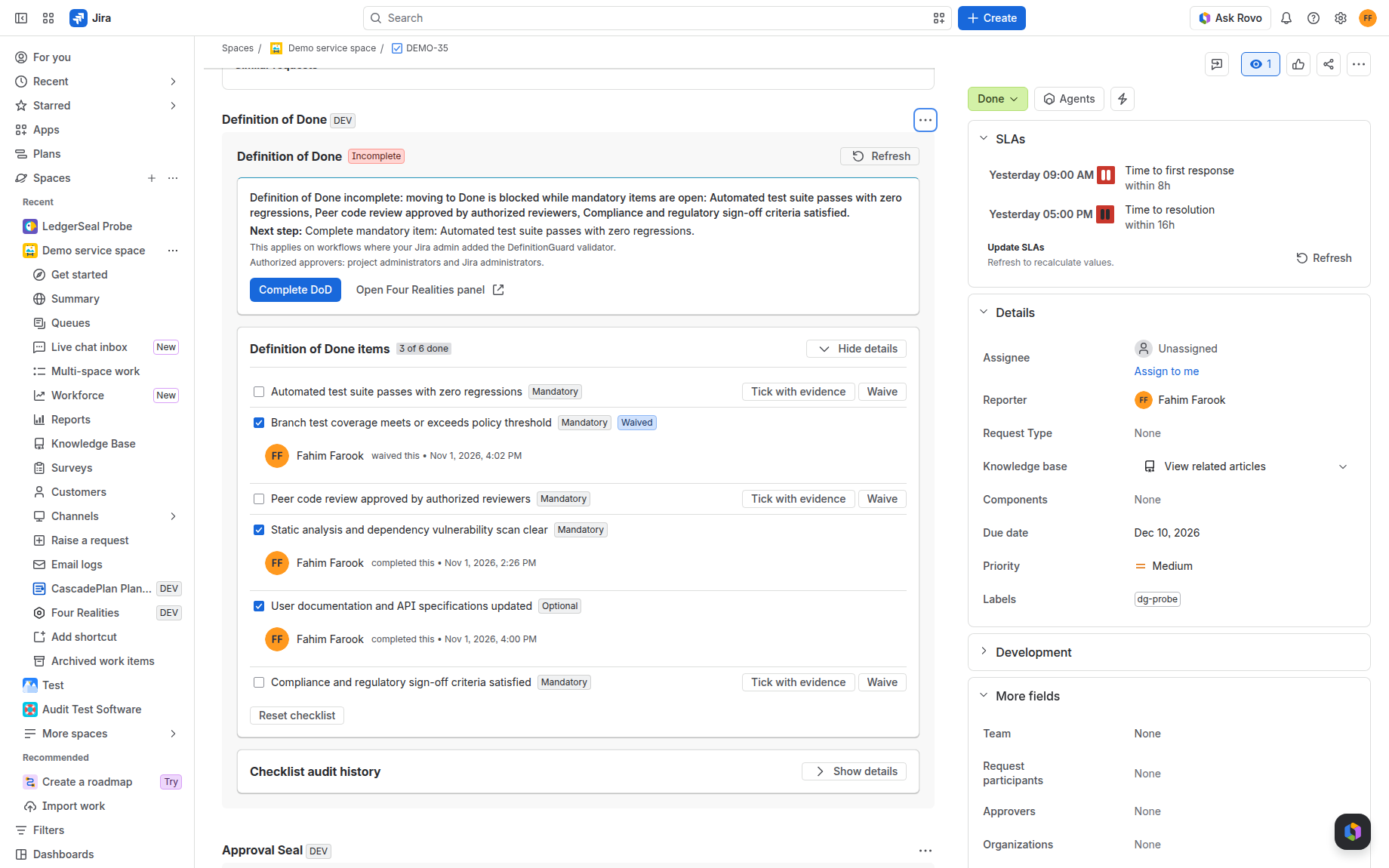
Figure 1: Definition of Done panel with open mandatory items, a waived item, completed items with attribution, and progress (3 of 6 done).
3. Not-the-Assignee Rule
Many teams want a person other than the assignee to sign off review items. DefinitionGuard supports this with a per-item rule:
- When Not the assignee is set on an item (e.g. Peer code review approved), neither the current assignee nor anyone who was the assignee of the issue after the item was opened can tick it or waive it. DefinitionGuard reads this from the issue's change history. The panel shows: The assignee cannot complete this item. Ask a reviewer.
- The workflow validator checks the rule again at the moment of the move into Done, for ticked and for waived items.
- Every completed item records who completed it (as a pseudonym, see the privacy policy) and the time in the hash-chained checklist history.
4. Audited Waivers
When a mandatory DoD item does not apply to an issue:
- Click Waive on the open mandatory item. Members of the DefinitionGuard approver groups and users with the template's waiver permission (default: Administer projects) can waive.
- Enter a reason of 10 to 500 characters and click Waive item.
- DefinitionGuard records the waiver, the user, the timestamp, and the reason in the history.
- The item shows a Waived lozenge. A waived mandatory item counts as done for the gate.
5. Workflow Transition Gate into Done
DefinitionGuard provides a Jira Cloud workflow validator. A Jira administrator must add it; the app cannot add it for you:
- Open the workflow in the Jira workflow editor.
- Select the transition into Done (or your terminal release status).
- Add the DefinitionGuard DoD Enforcement validator. It has no options.
- Publish the workflow.
The validator blocks a move into a Done-category status while any mandatory item is open and not waived. Statuses that a project administrator marked as exempt (for example Canceled) are let through. If DefinitionGuard cannot read the data it needs, it blocks the move. Jira shows the validator message, which lists the open mandatory items:
Definition of Done is not complete. Open mandatory items: ... Open the Definition of Done panel on this issue (from the View app actions button if it is not shown) to finish them.
6. Licence
If the DefinitionGuard licence on your site is not active, the gate is off: the validator lets every move through, the panel and the settings page show "Licence not active", and checklist changes are not saved. Reading checklists and their history still works.
7. Project Settings & Checklist Configuration
Project administrators can customize DoD requirements without touching Jira workflow schemes:
- Navigate to Project Settings > DefinitionGuard.
- Under Definition of Done templates, select the issue type to configure (e.g. Story, Bug, Epic).
- Add items with Add item, edit titles, use Move up / Move down to reorder, and Remove to delete.
- Set the rules for each item:
- Mandatory: the gate blocks the move into Done while this item is open and not waived.
- Evidence required: the item can only be ticked with a link, a note, or both.
- Not the assignee: the current assignee, and anyone who was the assignee after the item was opened, cannot tick or waive this item.
- Extra permission: No extra permission, Resolve issues, Transition issues, or Administer projects.
- Category: Testing, Code quality, Security, Compliance, or Documentation.
- Click Save template. To apply a changed template to open issues of that type, click Re-sync open issues; ticks on unchanged items are kept.
- Under Statuses the gate lets through, tick Done-category statuses that are not completions and click Save statuses.
- Under Gate coverage, see each transition into a Done status marked Gated, Not gated, or Exempt. Click Check again after a workflow change.
8. Audit History & Export
For internal audits and external compliance reviews, DefinitionGuard keeps a hash-chained history of each issue's checklist:
- In the panel, open Checklist audit history and click Load audit history. The history lists each event with the user and time, plus reasons and evidence. A Chain intact or Chain broken lozenge shows the result of the history check.
- The history check shows edits, removals, and reordering of the stored history. It does not stop someone who can rewrite all of the app's stored data, and that includes the app vendor.
- The history section also says whether the
definitionguard-dodissue property is signed on your site, and with which key (see Signing keys). - Project administrators can click Export history. The panel shows the JSON text with a file name such as
DEMO-35-definitionguard-history.json. Copy the text and save it as that file; the panel has no download button. - The export holds every event (who ticked, waived, or reopened each item, the evidence, the reasons, and the timestamps) and the result of the history check.
- All data is stored in the app's Forge storage for your site.
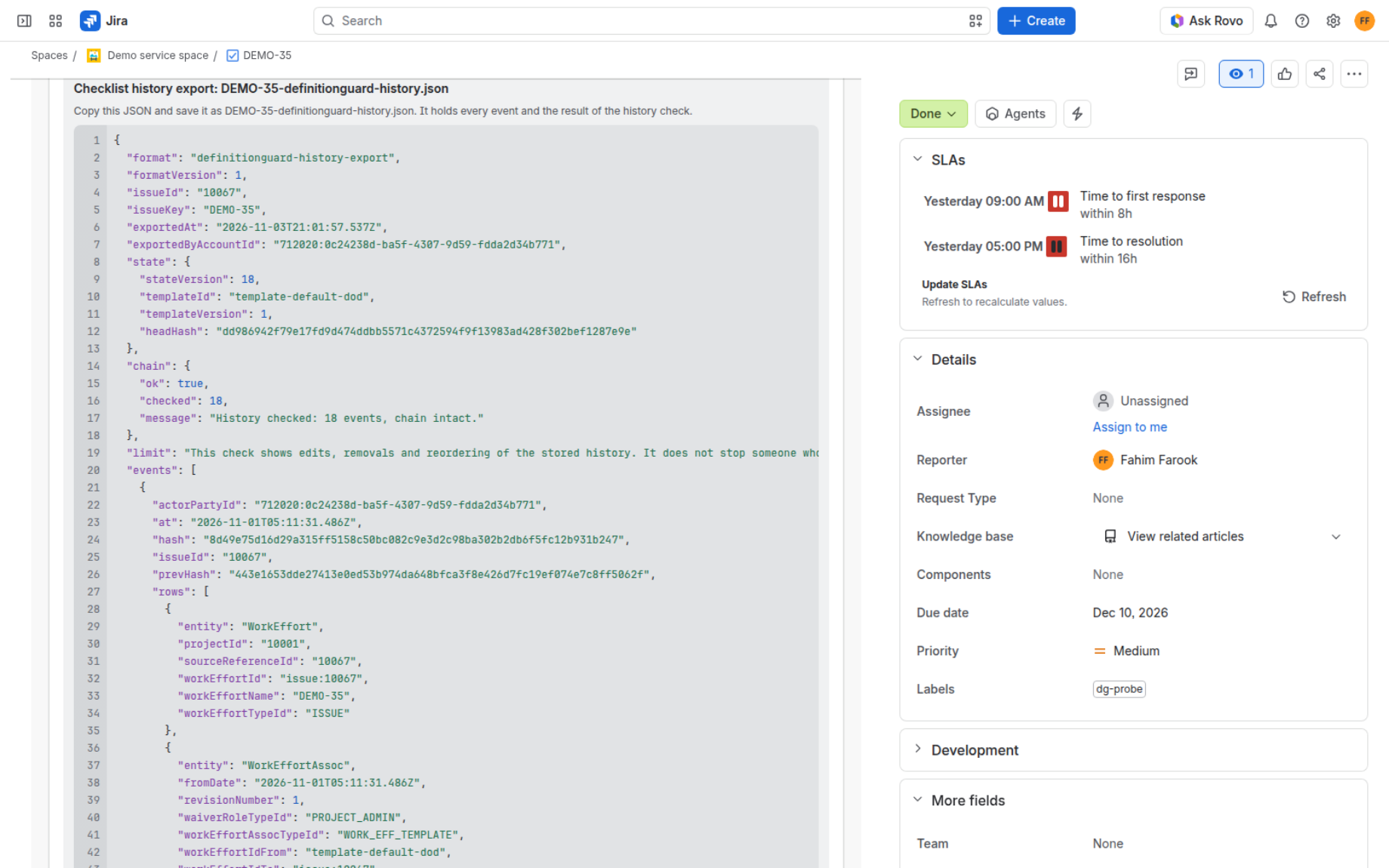
Figure 2: Checklist history export in the issue panel, ready to copy.
 Eliya
 Jira Governance
 Dial