DefinitionGuard User & Administrator Guide
DefinitionGuard puts a Definition of Done checklist on every Jira issue. Items can need evidence, can be closed to the assignee, and can be waived only with a reason. A workflow validator blocks the move into Done while a mandatory item is open. Every change is kept in a hash-chained history.
1. Who this guide is for
- Team members who tick items and add evidence. Read sections 3 and 4.
- Reviewers and approvers who tick review items, waive items and reset checklists. Read sections 4 and 9.
- Project administrators who write the checklists and check the gate. Read sections 5 and 6.
- Jira administrators who install the app, add the validator and choose approver groups. Read sections 2, 6 and 12.
2. Install and first setup
- Install (Jira administrator). In Jira, open Apps > Explore more apps, search for DefinitionGuard and choose Get app. The app asks to read Jira work, users and workflows, to write issue properties, to store its own data, and to report personal data to Atlassian. It calls no server outside your Atlassian site.
- Check the checklists (project administrator). Every issue already has a built-in checklist for its type (section 5). Change it in Project settings > DefinitionGuard if you want.
- Add the gate (Jira administrator). Add the validator DefinitionGuard DoD Enforcement to each transition into a Done status (section 6). Without it, DefinitionGuard shows the checklist but does not block.
- Check the coverage (project administrator). In Project settings > DefinitionGuard > Gate coverage, every completion transition should read Gated.
- Choose approvers (Jira administrator, optional). In Jira settings > Apps > DefinitionGuard approvers, add the groups that may waive items and reset checklists (section 9).
Licence. When the licence is not active, the panel and the settings page show "Licence not active". The gate is off: moves to Done are not blocked, and checklist changes are not saved. Reading the checklist and its history still works.
3. The Definition of Done panel
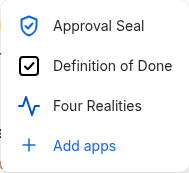
Open an issue. If the panel is not shown, choose the issue's app button (below the title) and then Definition of Done.
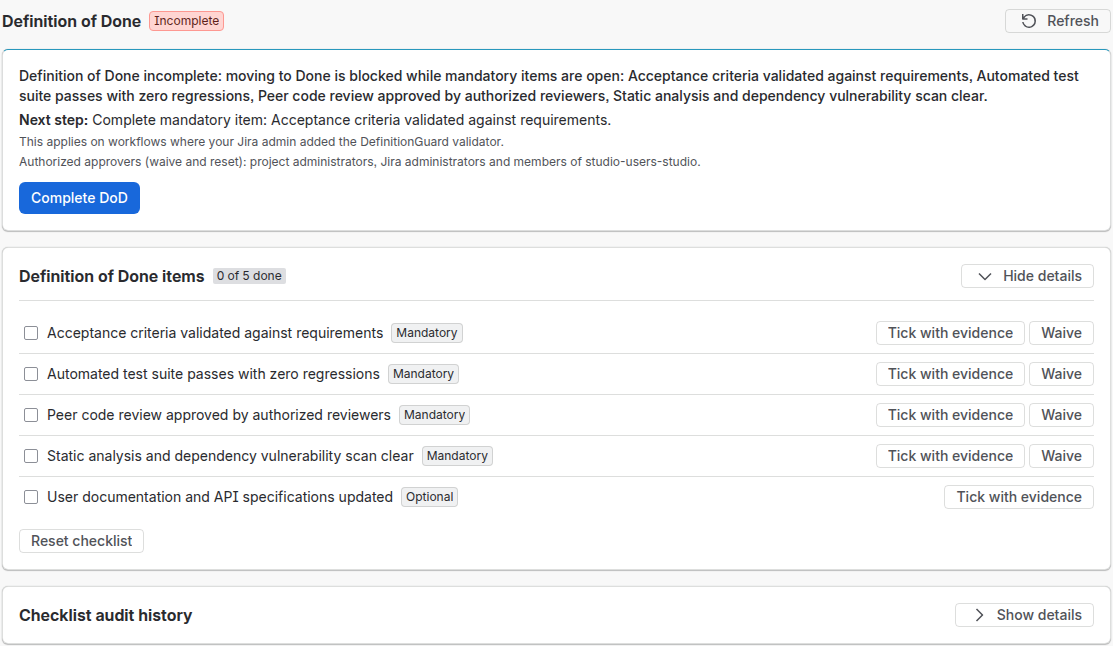
| Part | What it shows or does |
|---|---|
| Status lozenge | DoD complete (green) or Incomplete (red). |
| Refresh | Reads the checklist again. |
| Summary | Either "This issue can be moved to Done", or the list of open mandatory items that block the move. |
| Next step | The first open mandatory item, or "All mandatory criteria complete". |
| Approver line | Who can waive and reset on this site. |
| Complete DoD | Acts on the first unticked item only. It ticks that item, or opens its evidence form when it needs evidence. It does not tick the whole list. |
| Item checkbox | Ticks or unticks the item. On an item that needs evidence, it opens the evidence form instead. |
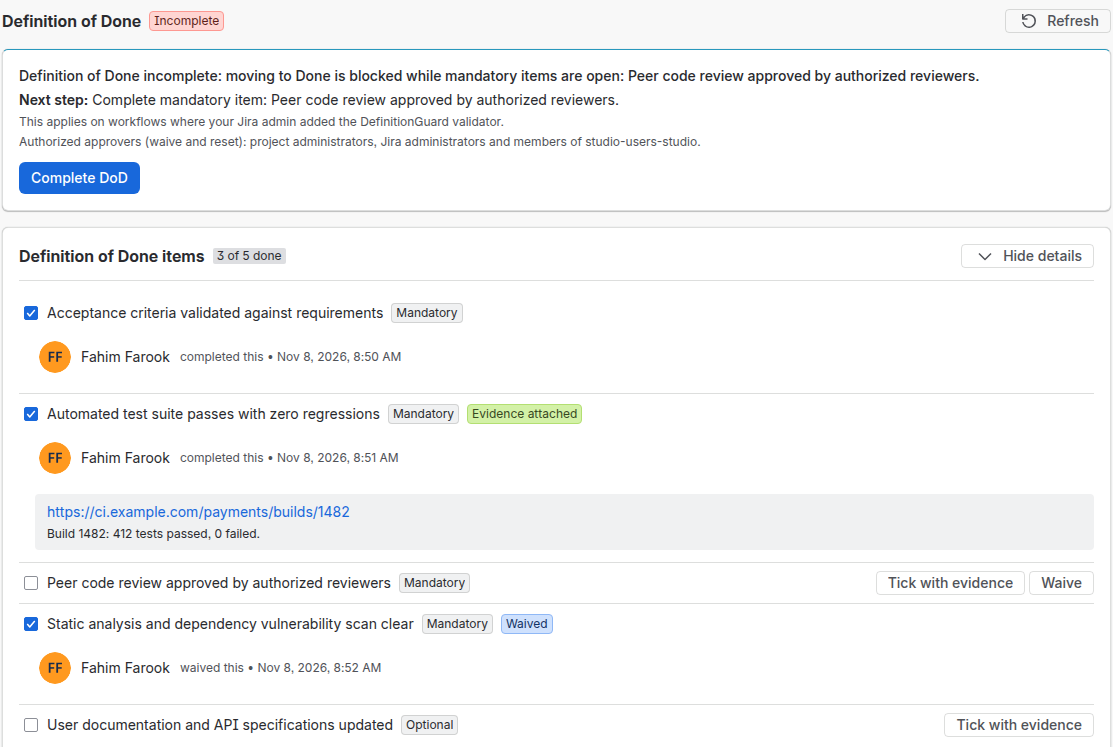
| Lozenges | Mandatory or Optional, Needs evidence, Evidence attached, Waived. |
| Tick with evidence | Ticks an item with a link or a note, even when evidence is not required. |
| Waive | Shown on open mandatory items. Waives the item with a reason. |
| Show evidence | Shows the link and the note of a ticked item. |
| Who and when | Under a ticked or waived item: the person, "completed this" or "waived this", and the time. |
| Reset checklist | Asks "Reset this checklist?" and then reopens every item. The reset is added to the history. |
| Checklist audit history | The history, the chain check and the export (section 7). |
A checklist is stored on the first change (a tick, a waiver or a reset). Before that, the panel shows the current template of the issue type.
4. Everyday tasks
Tick an item
Click the item's checkbox. Result: the item is ticked, with your name and the time. Untick it to reopen it; reopening an item drops its evidence.
Tick an item with evidence
- Click the checkbox of an item marked Needs evidence, or choose Tick with evidence on any open item.
- Enter a link that starts with
http://orhttps://, a note of up to 500 characters, or both. - Choose Save and tick. It is active once the link or the note has text.
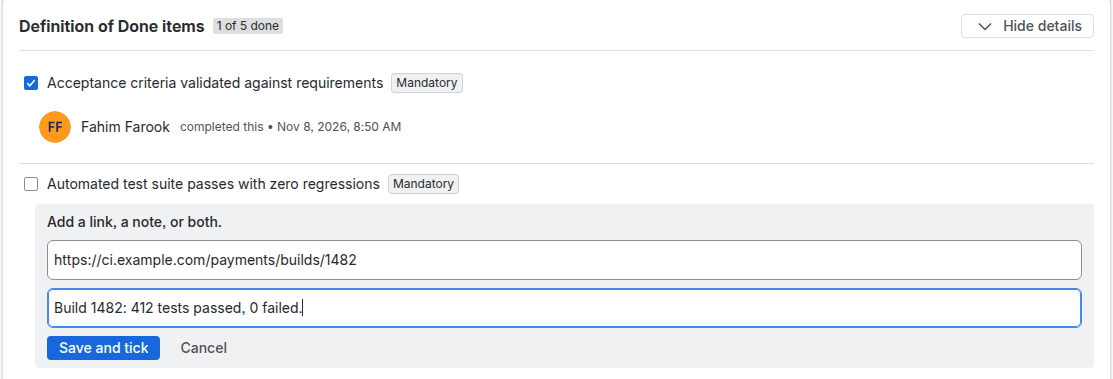
Result: the item shows Evidence attached. DefinitionGuard checks the link's format only, not what it points to.
Waive an item that does not apply
- Choose Waive on the open mandatory item.
- Write why the item does not apply, 10 to 500 characters.
- Choose Waive item.

Result: the item shows Waived, and it counts as done for the gate. The reason is kept in the history. Unticking a waived item reopens it; that needs the same right as a waiver.
The not-the-assignee rule
An item marked Not the assignee, for example a peer review, cannot be ticked or waived by the current assignee, or by anyone who was the assignee since the item was last opened. DefinitionGuard reads this from the issue's change history. The panel shows "The assignee cannot complete this item. Ask a reviewer." The validator checks the rule again at the move into Done.
Reset a checklist
Choose Reset checklist, then Reset checklist again in the warning. Every item becomes open. Nothing in the history is removed.
5. Write the checklists (project administrator)
Open Project settings > DefinitionGuard. You need Administer projects, or Jira administrator.
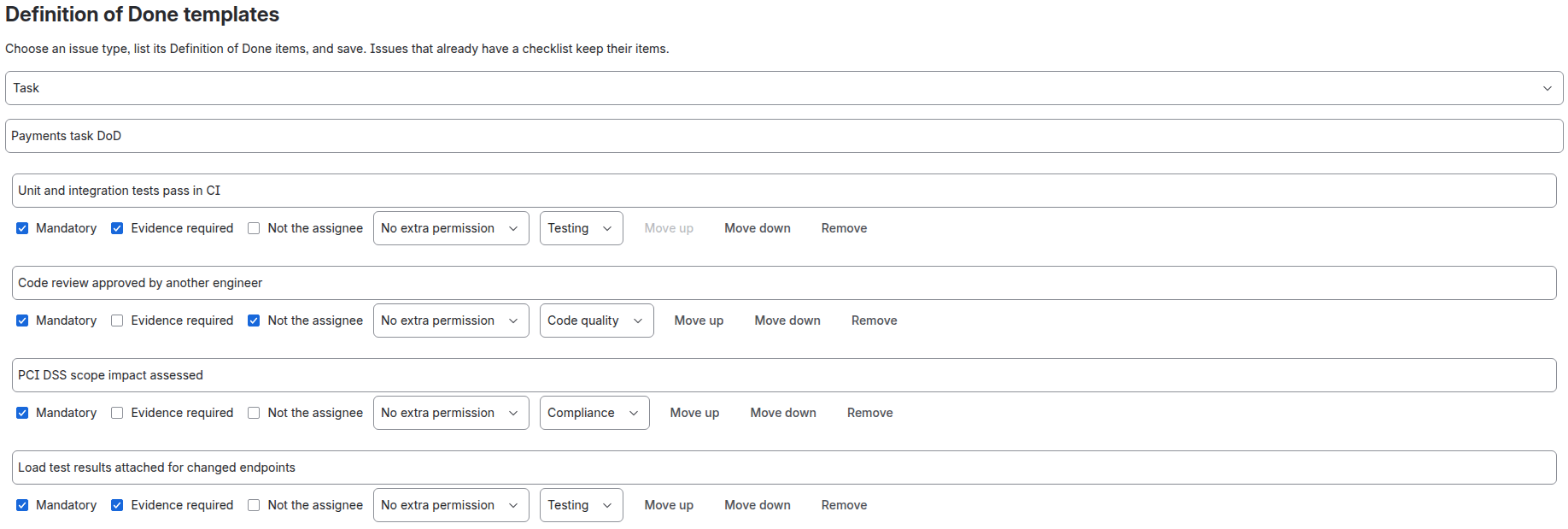
- Choose the issue type in the first field.
- Type a template name, for example "Team DoD".
- For each item, set the title and the rules:
- Mandatory: the gate blocks Done while this item is open and not waived.
- Evidence required: the item can be ticked only with a link, a note, or both.
- Not the assignee: the assignee, now or since the item was opened, cannot tick or waive it.
- Permission: No extra permission, Resolve issues, Transition issues or Administer projects. The user needs it to tick the item.
- Category: Testing, Code quality, Security, Compliance or Documentation.
- Set Who else can waive: Administer projects (the default), Resolve issues or Transition issues. Approvers can always waive. Users with the chosen Jira permission on the issue can waive too, and reopen a waived item. The template saves this choice, and a later save keeps it.
- Use Move up, Move down and Remove. Type a title in New item title and choose Add item; a new item is Mandatory and in Testing.
- Choose Save template. Result: "Template "NAME" version n saved." Each save adds 1 to the version.
- Open issues keep their version. To move them, choose Re-sync open issues. Result: "Re-synced n open issues to version v. Ticks on unchanged items were kept." New items start open. A re-sync never reopens a ticked item.
Built-in templates
Without a project template, DefinitionGuard picks a built-in template by the issue type name: Service Desk Request, IT Help Desk, Bug Fix (bug, defect, incident, problem), Feature & Story (story, feature, enhancement), Technical Task (chore, refactor, maintenance), or the Standard Engineering Definition of Done for any other type, Task included.
Statuses the gate lets through
The gate blocks moves into Done-category statuses. Tick the Done-category statuses that are not completions, such as Canceled or Declined, and choose Save statuses. Moves into those statuses are not gated.

6. The Done gate (the workflow validator)
DefinitionGuard blocks a move only on transitions where a Jira administrator added its validator. The app cannot add it for you.
- Open the project's workflow in the Jira workflow editor.
- Select a transition into a Done-category status.
- Add the validator DefinitionGuard DoD Enforcement. It has no options. It works in company-managed and team-managed projects.
- Repeat for every transition into Done, then publish the workflow.
- In Project settings > DefinitionGuard > Gate coverage, choose Check again. Each transition shows Gated, Not gated or Exempt.

What the validator does
- It lets the move through when every mandatory item is done or waived, with evidence where it is required, and not ticked by an excluded assignee.
- It lets through moves to statuses that are not in the Done category, and moves to exempt statuses.
- An issue with no stored checklist is checked against its template, with every item open. So once the validator is on, such an issue cannot reach Done.
- If DefinitionGuard cannot read what it needs, it blocks the move (it fails closed).
- With an inactive licence, it lets every move through.
When it blocks, Jira shows:
Definition of Done is not complete. Open mandatory items: <titles>. Open the Definition of Done panel on this issue (from the View app actions button if it is not shown) to finish them.
7. Audit history and export
- Open Checklist audit history in the panel and choose Load audit history.
- Read the chain result: Chain intact or Chain broken, and the signature result: Property signed or Property not signed.
- Read the events: who, when, the action (Checklist created, Completed, Reopened, Waived, Checklist reset), the item, the reason and the evidence. The panel lists the history 100 events at a time, oldest first. While more events follow, it shows "Showing n of m events, oldest first." and Show more, which adds the next 100. The chain check and the export cover every event.
- Project and Jira administrators choose Export history. Copy the JSON and save it as
KEY-definitionguard-history.json. There is no download button.
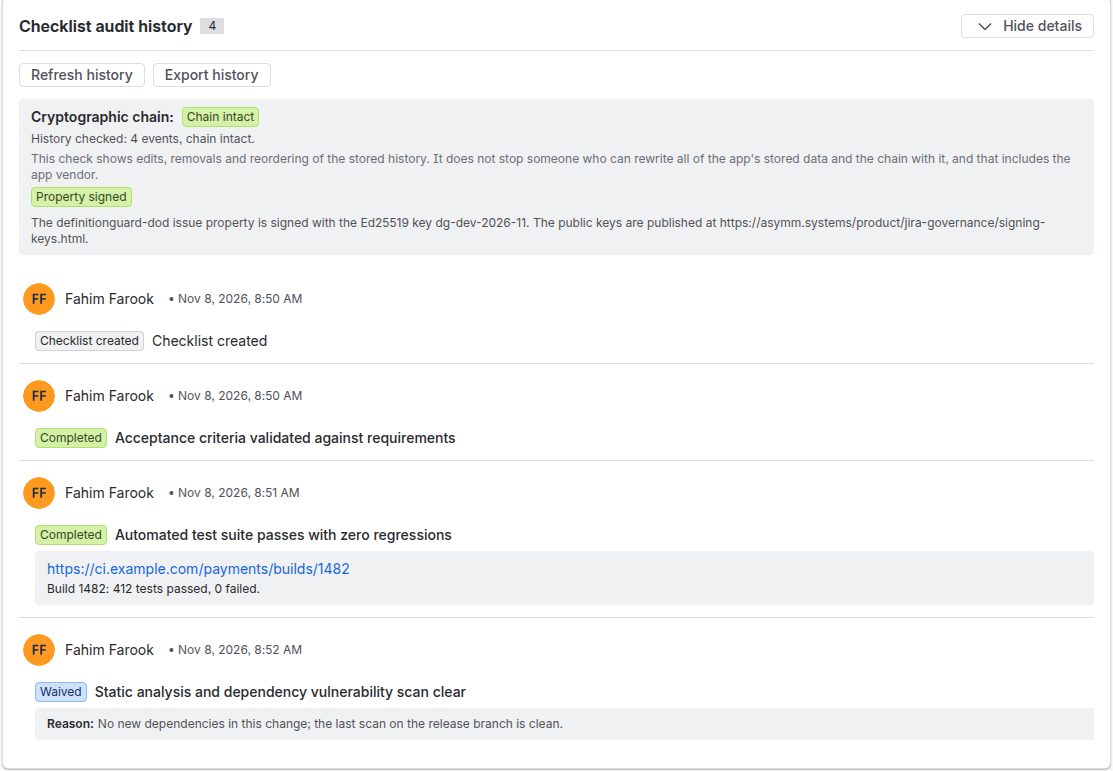
dg-prod-2026-11.
What the checks mean
- The chain. Each event holds the SHA-256 hash of the event before it. The check shows edits, removals and reordering of the stored history. It does not stop someone who can rewrite all of the app's stored data and the chain with it, and that includes the app vendor.
- The signed property. On every change, DefinitionGuard writes the issue property
definitionguard-dod: a summary of the checklist (counts, open mandatory item ids, the chain head), signed with Ed25519. The public keys are on the Signing keys page. FourRealities checks this signature for its Process gate. "Property signed" in the panel means the site has a signing key; the panel itself does not check the signature.
8. Permissions
| Action | Who can do it |
|---|---|
| See the panel, the history and the evidence | Users with Browse projects on the issue. |
| Tick or untick an item | Users with Edit issues, plus the item's extra permission. Not the assignee, for items marked Not the assignee. |
| Waive an item | Approvers: project administrators, Jira administrators and members of the approver groups. Also users with the template's waiver permission (Who else can waive, default Administer projects). Not the assignee, for items marked Not the assignee. |
| Reopen a waived item | Users with Edit issues who can also waive the item. |
| Reset a checklist | Approvers. |
| Export the history | Project administrators and Jira administrators. |
| Edit templates, statuses, re-sync, see coverage | Project administrators and Jira administrators. Changes need an active licence. |
| Choose approver groups | Jira administrators. |
Every check asks Jira as the user and fails closed: if Jira does not answer, the change is not saved.
9. Approver groups (Jira administrator)
- Open Jira settings > Apps > DefinitionGuard approvers.
- Search for a group in Find Jira groups to grant authority, then choose Add.
- Choose Save changes. Result: "Saved. The approver groups apply to every project on this site."
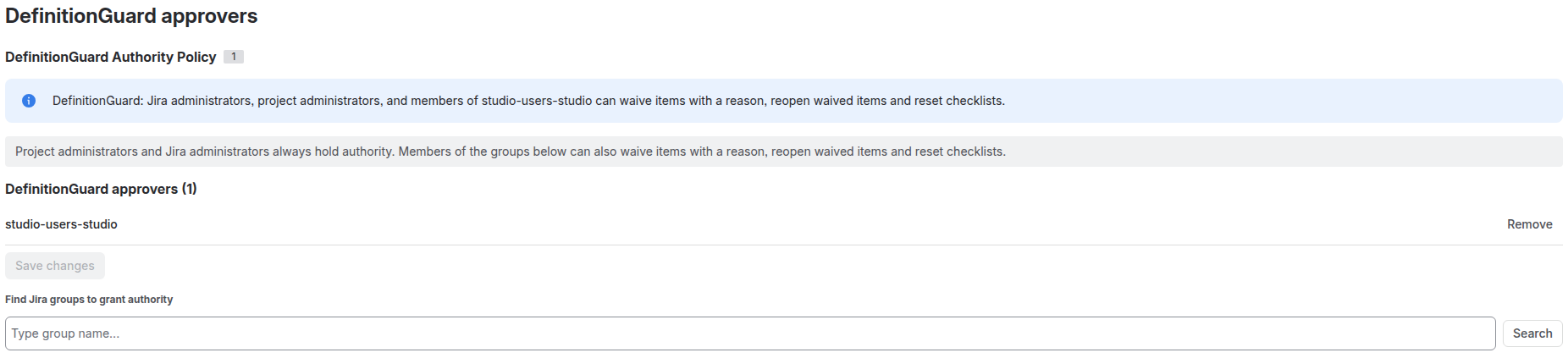
At most 20 groups. A search shows at most 20 results and takes at most 100 characters.
10. Data stored and where
- Where: in the Forge storage of your site, and in one issue property per issue. DefinitionGuard sends nothing outside your Atlassian site.
- In Forge storage: each issue's checklist state and its history events (status, reason, evidence link and note); project templates; exempt statuses; approver groups.
- On the issue: the signed property
definitionguard-dod. It holds no personal data. - People: each person is stored as a random pseudonym. The Atlassian account id is kept only in one link record per person. The app reports these ids to Atlassian every week and deletes the link of each closed account; the history then shows "A deleted user", and the chain still checks.
- Free text: evidence links, notes and waiver reasons are kept as typed and may name people.
- Retention: records stay until the issue is deleted or the app is uninstalled. Deleting an issue deletes its checklist and history.
See the privacy policy.
11. Limits
- Items per template: 1 to 50. Template size: 32 KiB. Template name: 100 characters. Item title: 200 characters.
- Evidence link: http or https, at most 2,000 characters. Evidence note: 500 characters. Waiver reason: 10 to 500 characters.
- Exempt statuses: 50. Approver groups: 20.
- The panel lists the first 100 history events.
- The assignee history reads at most 10,000 changelog entries; beyond that the change is refused.
12. Troubleshooting and messages
| Message | What it means and what to do |
|---|---|
| "Definition of Done is not complete. Open mandatory items: ..." | The validator blocked the move. Finish or waive the named items. |
| "DefinitionGuard could not check the Definition of Done, so this move is blocked. Try again..." | The validator could not read what it needs. Try again; if it keeps failing, ask your Jira admin. |
| "The assignee cannot complete this item. Ask a reviewer." | The item is marked Not the assignee. Another person must tick it. |
| "You need Edit issues permission to change this checklist." | Ask a project administrator for Edit issues. |
| "You need the <Perm> Jira permission to complete this item." | The item needs an extra permission. |
| "Only users with the <Perm> Jira permission can waive this item." | Ask an approver to waive it. |
| "Only a project admin can reset this checklist." | Ask an approver. |
| "Add a link or a note. This item needs evidence before it counts as done." | Use the evidence form. |
| "The evidence link must start with http:// or https://." | Fix the link. |
| "Give a reason of 10 to 500 characters for the waiver." | Write a longer or shorter reason. |
| "Someone else changed this checklist. Refresh and try again." | Choose Refresh and make your change again. |
| "Your DefinitionGuard licence is not active. Ask your Jira admin." | The licence must be renewed under Manage apps. |
| "DefinitionGuard could not <action>. Refresh the page and try again..." | A general error. Refresh; if it keeps failing, ask your Jira admin. |
| "DefinitionGuard could not read the project workflows..." | Gate coverage could not read workflows. A Jira admin checks the app's access. |
| "History check failed at event N (...)" | The stored history does not match its chain. Ask your Jira admin to review the issue. |
| Gate coverage shows "Not gated" | Add the validator to that transition and choose Check again. |
Still stuck? Write to [email protected].
13. Uninstall and data removal
- Remove the validator DefinitionGuard DoD Enforcement from your workflows first, so no transition depends on it.
- A Jira administrator opens Jira settings > Apps > Manage apps and uninstalls DefinitionGuard.
- Atlassian keeps the app's Forge storage for 28 days and then deletes it: checklists, history, templates and settings.
- The issue property
definitionguard-dodstays on each issue until the issue is deleted.
For other requests, write to [email protected].
14. Related pages
- Jira Governance Suite user guide.
- Signing keys.
- FourRealities guide: the Process gate checks the signed DefinitionGuard record.
- FAQ, Compliance mapping, Privacy policy.
 Eliya
 Jira Governance
 Dial